 Calmly Writer

Opening files
The open dialog, the list of recent files, and the other ways a document can arrive in a tab.
Ctrl+O⌘O opens the system’s file dialog, filtered to the formats the app reads. The document opens in a new tab, or in the current one if it is empty.
Recent files
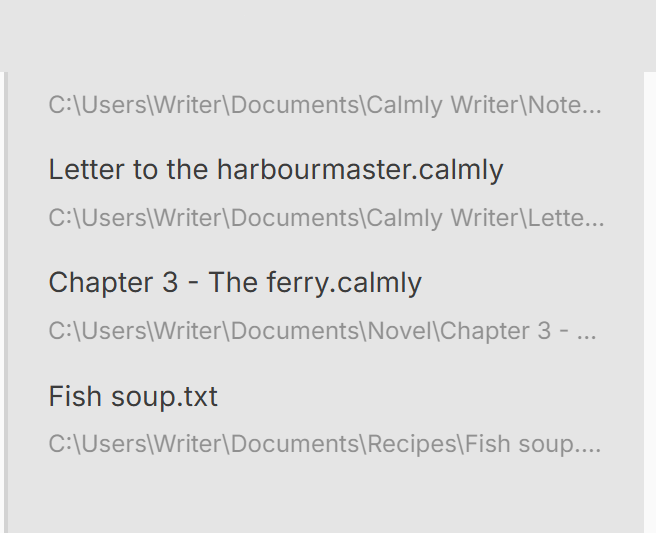
Open recent in the main menu lists the last twenty documents you opened or saved, with their folders, and opens one with a click. On a touch screen the list is the easiest way back to yesterday’s work.
Other ways in
- Double-click a file in your file manager: the installer registers Calmly Writer for
.calmly,.md,.txtand.htmlfiles and their variants. If the app is already running, the document opens as a new tab in the window you used last. - Drop a file on the window, or several at once: each opens in its own tab.
- From a terminal, start the app with the file as an argument.
- On Android, use Open with from a file manager or another app; see Android and Chromebook.
Files that changed since
A file edited by another program while it is open in Calmly Writer is noticed, and the app asks what to do: see Changes on disk.
More in Files
The files Calmly Writer opens and saves, what each one keeps, and which to choose as the default.
Saving by hand or letting the app do it, where new documents go, and how they are named.
The copies the app keeps of every open document, how to go back to an earlier one, and how to get back a document you closed without saving.
What the app does when a file open in a tab is changed by another program, a sync service or another computer.
Word and PDF from the document on the screen, and what to use for HTML and Markdown instead.
Keeping documents in Google Drive, Dropbox or OneDrive, on the desktop and on Android, and what each service can and cannot do.