 Calmly Writer

Calmly Writer on Android and Chromebook
What is different on a phone, a tablet or a Chromebook: autosave and its folder, the touch toolbar, opening files from other apps, and the limits of the platform.
The Android app is the same editor, with the same files and the same shortcuts when a keyboard is attached. What changes is what a phone or a tablet changes: there is no mouse, no window and no file system you can see, so a few things work differently.
Buying it
The app is a one-time purchase on Google Play, separate from the desktop license, with no key to type and no trial; see Trial and license.
Autosave and its folder
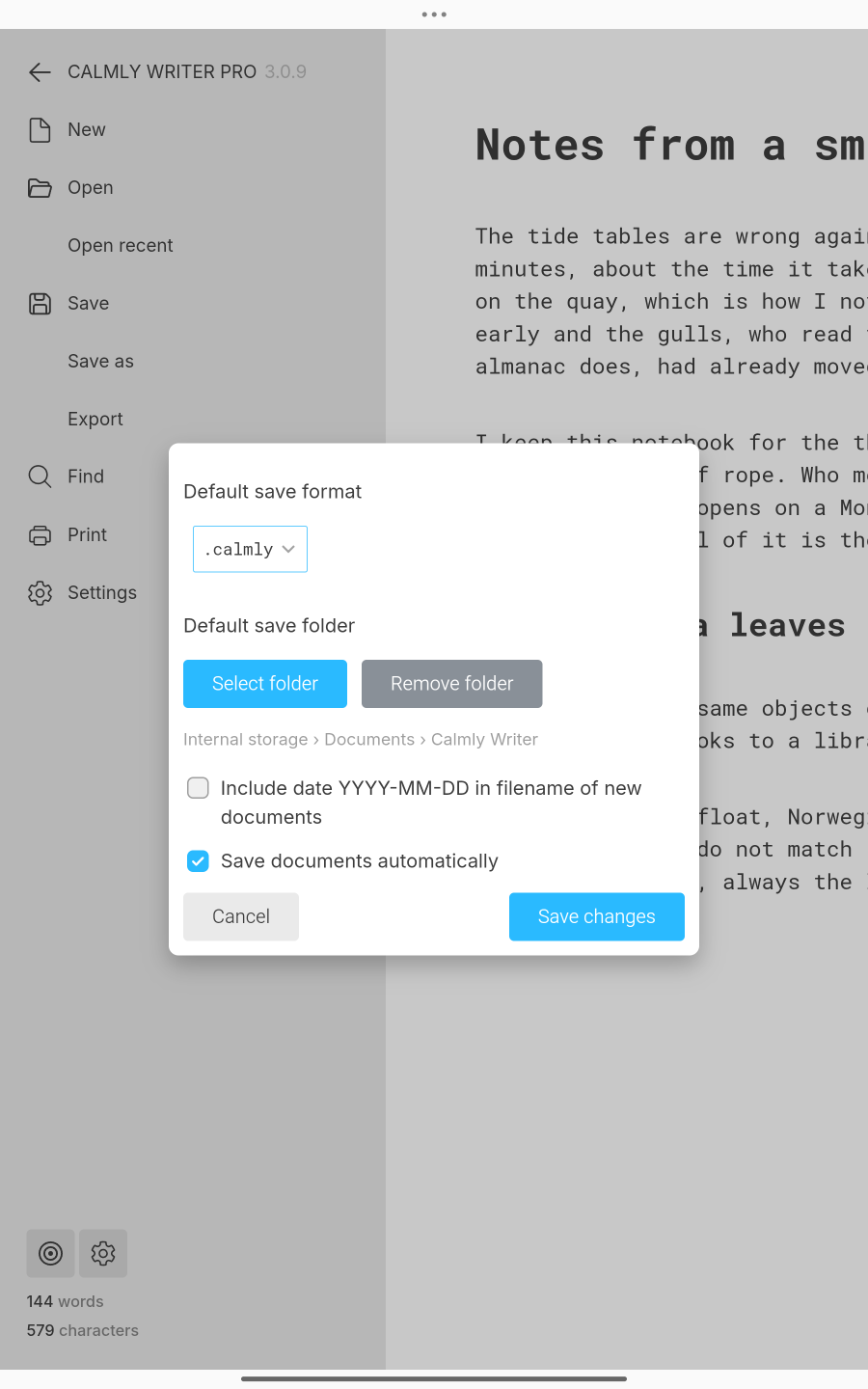
Autosave is on from the start: what you write is saved as you type. The first time a document needs a place to go, the app asks you to choose a folder; the system’s folder picker shows the internal storage, Downloads, an SD card if there is one, and the cloud services whose apps are installed. From then on, new documents are saved there, named after their first line, in the default format. You can change the folder in .
Until a folder is chosen, a document lives only in the app’s backups. Closing its tab is when the app insists on a folder, so nothing is lost by accident.
Opening files from other apps
Any app that offers to open a text, Markdown, HTML or Word file with another app can hand it to Calmly Writer: in a file manager, in Drive, in a mail attachment, choose Open with. The document opens in a tab and, if it is in a writable place, saves back to it.
The app does not have a Share entry of its own. To send a document somewhere, save it to a folder the other app can see, or export it to Word or PDF and share the file from the file manager.
Writing with a finger
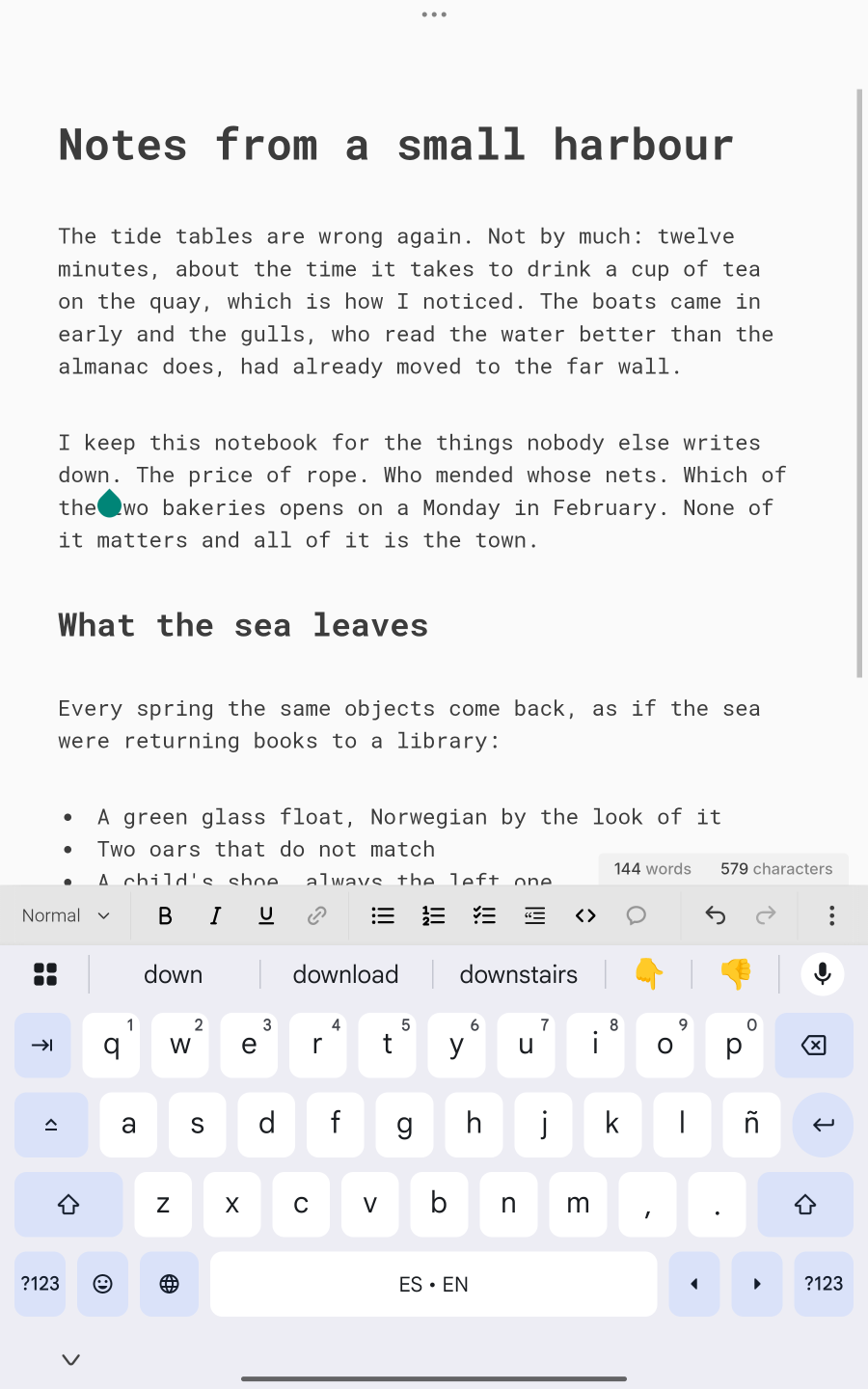
Without a mouse there is no right-click and no hover, so the tools move to where a finger can reach them:
- A format bar sits at the bottom of the screen, above the keyboard, with the paragraph style, bold, italic, underline, link, lists, checklist, quote, code, comment, undo and redo, and under ⋮ strikethrough, the writing direction and the two Copy as commands.
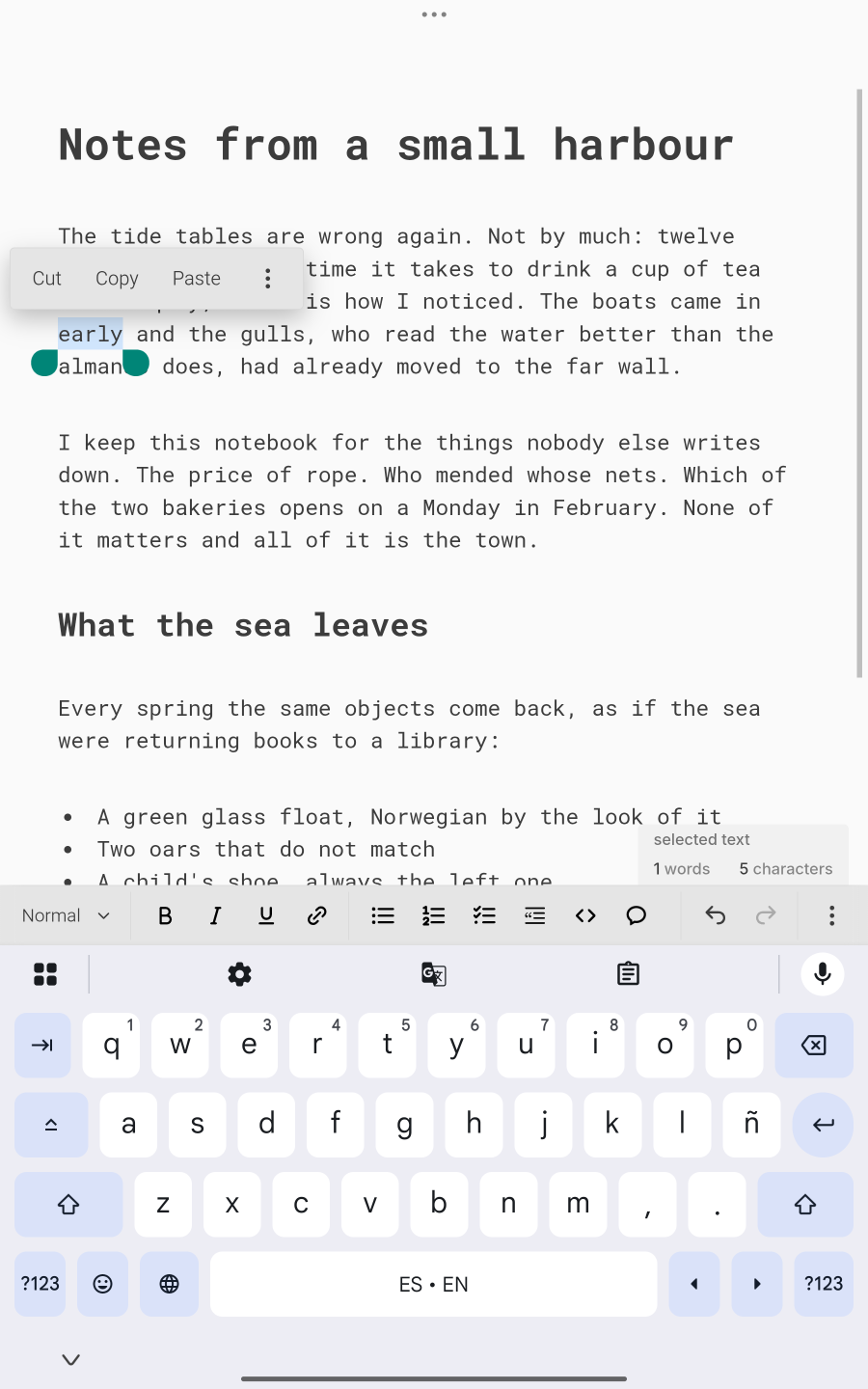
- Long-press a word to select it and get a small bar with cut, copy and paste; ⋮ there holds Paste without format and Select all.
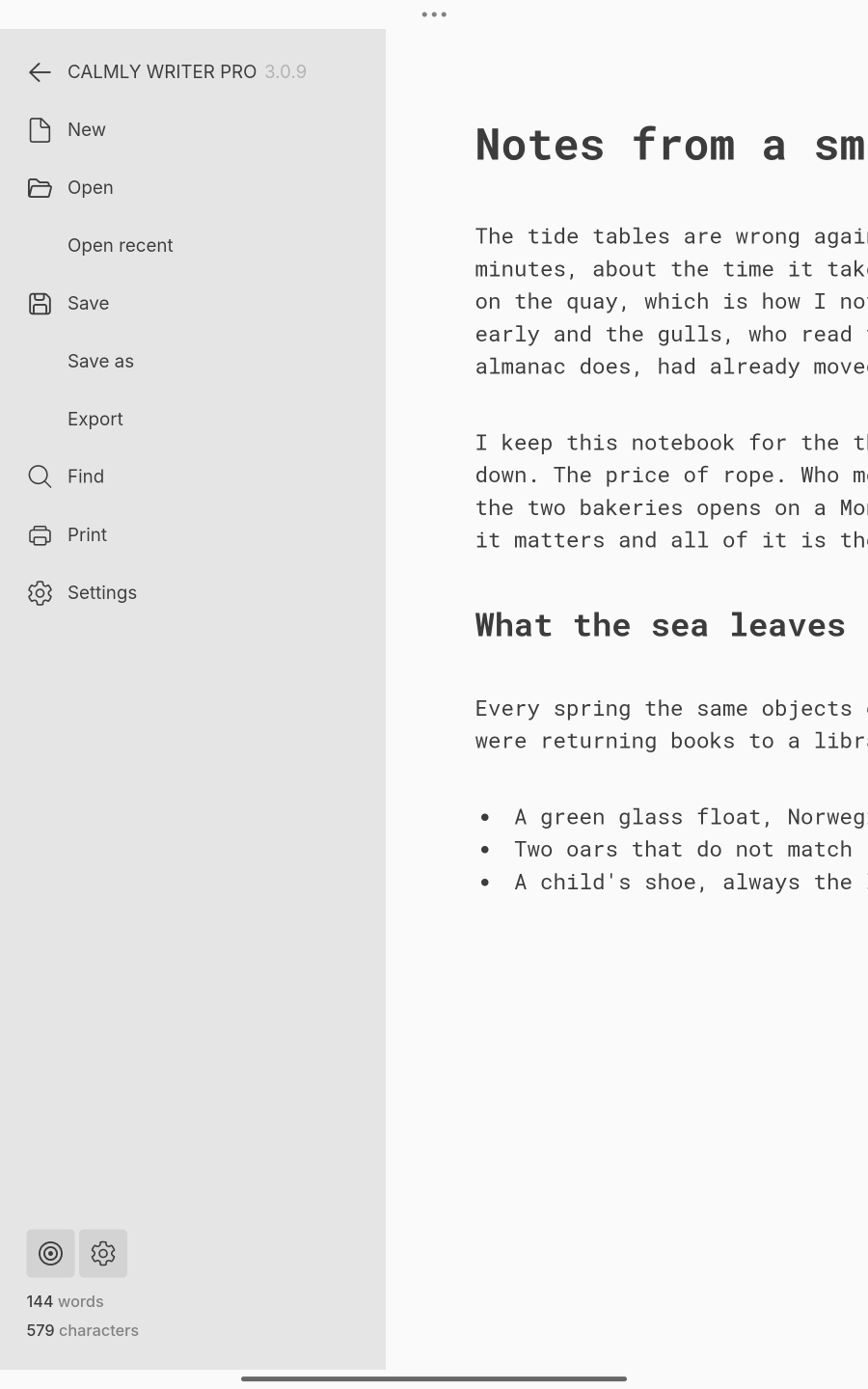
- Find is in the main menu, since there is no Ctrl+F⌘F to press.
- Tap the top edge of the screen to bring the tabs back; drag a tab to reorder it.
- Links open with a tap on the link, then a tap on the pill that appears.
When a keyboard is attached, by cable or Bluetooth, the shortcuts are the Windows ones, and the bar makes room for them; on a Chromebook, which always has a keyboard, the shortcuts are also shown next to the menu entries.
The screen
The app paints the system bars in the colour of the theme. hides the status bar at the top of the screen too, for nothing but the page. The reading time is off in the counter by default, where the screen is small; turn it on from the counter’s gear if you want it.
The system’s Back gesture closes things in order: an open dialog first, then Settings, the recent files, the search, the menu, and only then does it leave the app.
Spelling
Spelling on Android is the keyboard’s job: Gboard and the others underline and suggest as you type, with their own dictionaries and languages. The app’s own spell checker is not there, and the setting with it.
Printing and PDF
Printing goes through Android’s print dialog, and so does exporting to PDF: choose Save as PDF as the printer. Word export writes a .docx where you choose.
Backups and uninstalling
The app keeps backups and previous versions as on the desktop, in its private storage. Android deletes that storage when the app is uninstalled: save anything you still need as a file first.
Chromebook
A Chromebook runs the Android app from Google Play, and that is the way we recommend: it installs in a couple of clicks and opens documents straight from the Files app, in a window that opens maximised. Two things to know:
- Google Drive is offered to Android apps read-only. A document opened from Drive can be read but not saved in place; the app offers to save a copy elsewhere. See Cloud folders.
- The desktop app can also run in the Chromebook’s Linux environment, but it is a long setup and we do not recommend it. Both routes are described here.