 Calmly Writer

Smart punctuation
Curly quotes, dashes, ellipses and arrows written for you as you type, the quotation marks of your language, and how to turn each one off.
A keyboard has one quotation mark and one dash; a printed page has several of each. Calmly Writer puts the right one in as you type, and each replacement can be switched off in .
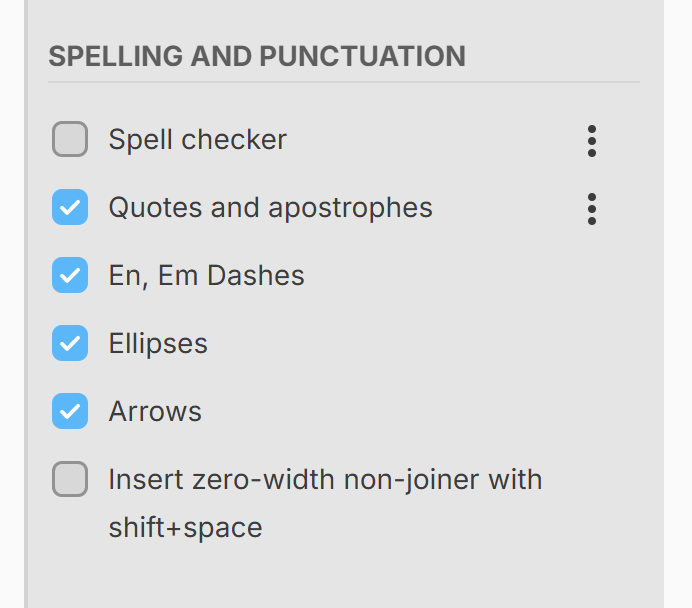
Quotes and apostrophes
Quotes and apostrophes turns " and ' into opening or closing marks according to where they are: at the start of a word they open, after a word they close, and inside a word (don’t) they become an apostrophe. Typing << and >> gives guillemets, « and ».
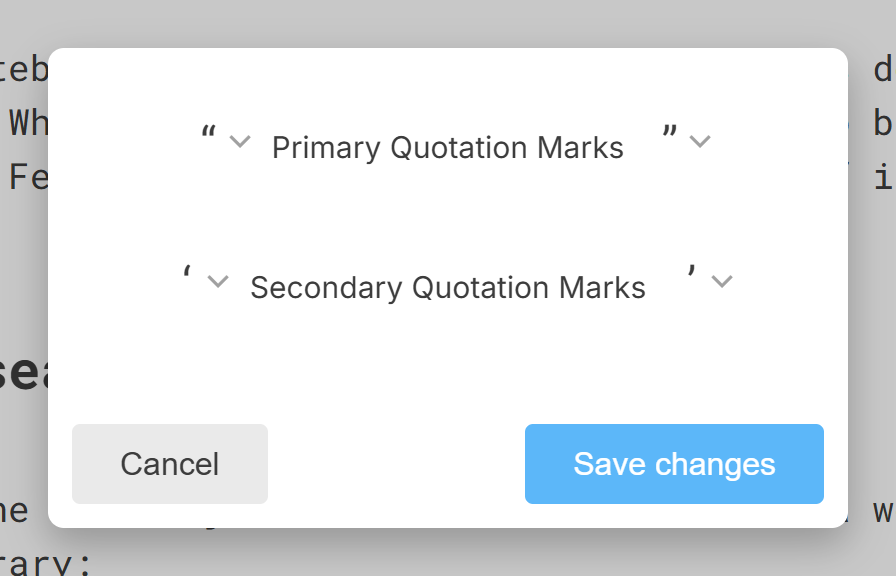
Which marks you get depends on the language of the app: “ ” and ‘ ’ in English, „ “ and ‚ ‘ in German, and so on. To choose your own, click the ⋮ next to the setting and pick the primary and secondary marks from the list.
The replacement also works with dead-key keyboard layouts, where a quote is typed as a dead key followed by a space.
Dashes, ellipses and arrows
| You type | You get | Setting |
|---|---|---|
-- |
– (en dash) | En, Em Dashes |
--- |
— (em dash) | En, Em Dashes |
... |
… | Ellipses |
-> <- <-> |
→ ← ↔ | Arrows |
=> <= <=> |
⇒ ⇐ ⇔ | Arrows |
|-> <-| ->| |<- |
↦ ↤ ⇥ ⇤ | Arrows |
If a replacement is not what you wanted, Ctrl+Z⌘Z right after it puts the characters back as you typed them.
Wrapping a selection
With some text selected, typing (, [, {, ", ' or « wraps the selection in the pair instead of replacing it.
Zero-width non-joiner
For Persian and other scripts that need it, Insert zero-width non-joiner with shift+space makes Shift+Space⇧Space insert a zero-width non-joiner. It is off unless you turn it on.
More in Writing
The Markdown shortcuts that turn into headings, lists and emphasis while you type, and the ones you can turn off.
The small toolbar that appears over selected text, and the reminder of shortcuts that shows when you hold Ctrl or Cmd.
Six levels of heading, the panel that lists them, and the keys that move through it without touching the mouse.
Bulleted, numbered and checklist items, nesting them with Tab, and turning one kind of list into another.
Links to web pages, to other documents on your disk and to headings in the same document, and how to follow them.
Four ways to put a picture in a document, the difference between embedding and linking one, and what the editor does not do with images.
The slash menu that inserts blocks, the toolbar that edits tables, and the rules that keep them compatible with Markdown.
Notes attached to a passage, in three colours, which travel with the document and never print.
The spell checker and its languages on each system, adding words to the dictionary, and the language of the app itself.
Right-to-left writing for Arabic, Hebrew, Persian and other scripts, per document or for every new document.
Searching the document or every open tab, and a replace that keeps the capitals of what it finds.
What happens to formatting when text comes in from elsewhere or goes out, and the two ways to copy a document as code.